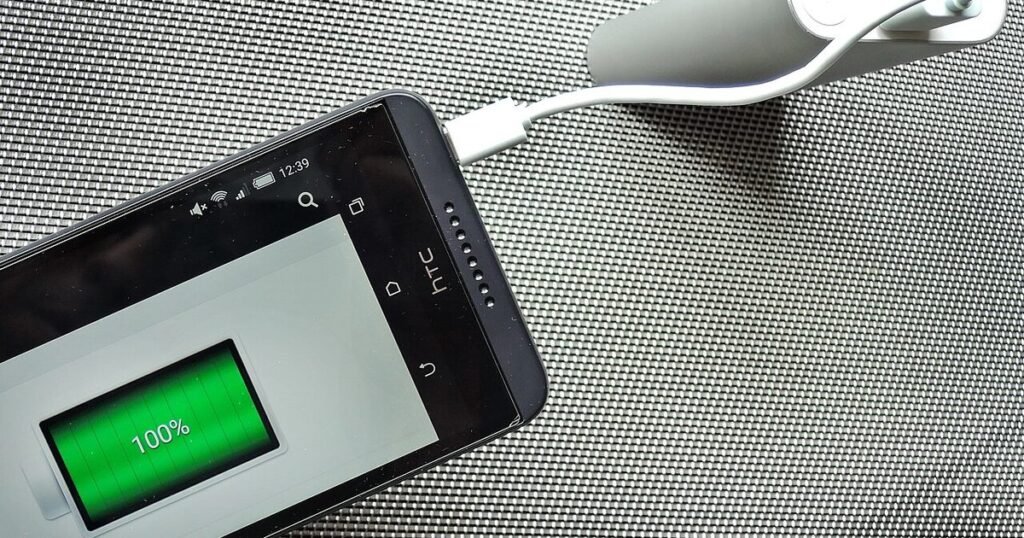
Your Android phone does not need to limp through the afternoon just because one app is misbehaving. The trick is knowing whether the drain is normal use, a bright screen, poor signal, or an app that keeps working after you put the phone down. This guide gives you a calm way to find the culprit, fix it, and avoid breaking the alerts you actually rely on.
Disclosure: this guide is editorial. It does not contain paid placement or affiliate links.
Start with a two-day battery diary
A battery screen only tells part of the story. Before changing settings, give yourself a simple baseline for two normal days. Charge the phone to a level you would usually start from, use it normally, then note three things at bedtime: remaining battery, screen-on time if your phone shows it, and anything unusual such as travel, hotspot use, camera use, gaming, weak signal, or a long video call. The goal is not lab testing. It is to separate a real app problem from a heavy day.
This matters because many people blame the last app they opened. In reality, battery drain often comes from a background task, poor signal, location polling, cloud backup, or a wearable companion app that kept waking the phone. A short diary gives context. If the phone only drains on commute days, maps, Bluetooth audio, cellular signal, and transit apps belong in the first suspect group. If it drains overnight on Wi-Fi, look at messaging, backup, smart home, sleep tracking, and apps allowed to run without restriction. AndroidLounge recommends making one change at a time so you know what helped.
Read Android’s battery screen without overreacting
Open Settings, then Battery, then Battery usage. The exact labels vary by Pixel, Samsung, Motorola, OnePlus, and other brands, but the idea is the same: Android lists apps and system items that used battery since the last full charge or within a recent window. A high percentage does not automatically mean an app is bad. If you spent two hours watching YouTube, YouTube should appear near the top. If Maps guided you across town, Maps should be high. That is normal use.
The warning sign is mismatch. A weather app used for thirty seconds should not sit beside your streaming app. A shopping app you did not open should not be near the top after a quiet day. A fitness, VPN, launcher, keyboard, or companion app can also look small in minutes but expensive in background activity. Tap the app if your phone offers a detail page. Look for words such as background, foreground, unrestricted, optimized, or restricted. Those labels tell you whether Android is letting the app work while you are not using it.
Separate screen drain from app drain
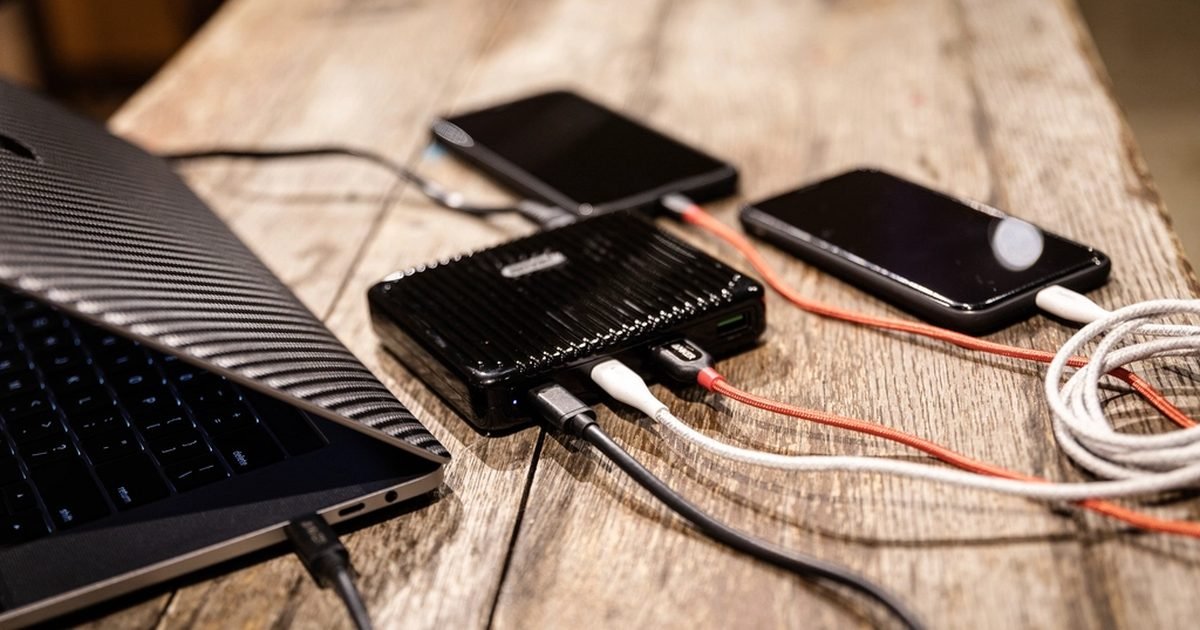
The display is still one of the easiest ways to burn power, so do not treat every bad battery day as an app failure. If your screen was bright outdoors, navigation stayed open, or you used the camera for a long time, the screen and radios probably did the damage. Lowering brightness, shortening screen timeout, and turning off always-on display can help, but that is a different fix from restricting an app.
A quick test helps. On a day when you barely use the phone, check whether the battery still falls faster than expected. If it does, the suspect shifts toward background activity, mobile signal, sync, Bluetooth, or a stuck system service. If the phone holds up well on light days but drops only during heavy viewing or gaming, the phone is behaving normally. In that case, the best improvement is practical: charge before travel, carry a compact power bank, download media on Wi-Fi, and avoid maximum brightness when you do not need it.
Check background usage before deleting anything
When one app looks suspicious, tap it from the battery usage page and check its battery setting. Most recent Android phones offer choices similar to unrestricted, optimized, and restricted. Optimized is usually the safest default. Restricted can save battery, but it may delay notifications, background uploads, location updates, widgets, and watch syncing. Unrestricted should be reserved for apps that truly need to work in the background, such as health devices, navigation, security tools, or messaging apps you cannot miss.
Do not uninstall an app just because it appears once. First, force stop it, reopen it, and watch the next day. Then clear its cache if your phone offers that option. If the same app returns to the top with little use, restrict its background activity. If that breaks something important, move it back to optimized and adjust in-app settings instead. Many social, shopping, travel, and news apps have their own toggles for autoplay, background refresh, location, and promotional alerts. Turning those off often gives you a cleaner fix than a full restriction.
Look for the quiet battery thieves

The worst battery drain is not always obvious. A wallpaper app may refresh often. A keyboard may sync dictionaries. A VPN may reconnect all day. A cloud storage app may upload photos on mobile data. A smart home app may keep presence detection active. A cheap fitness tracker app may fight Bluetooth problems in the background. None of these are evil by default, but they deserve attention if your battery graph slopes down while the phone sits idle.
Location is the first place to check. Go to Settings, then Location, then app location permissions. Change apps from all the time to only while using the app unless they have a clear reason to track in the background. Next, review Bluetooth companion apps for watches, earbuds, car tools, and trackers. If a device is no longer used, remove the app or unpair the device. Finally, check apps with notification overload. Each alert wakes the screen, uses data, and invites you back into the app. Fewer noisy apps often means better battery and a calmer phone.
Use Safe Mode when the phone drains overnight
If the battery drops heavily overnight and the battery list does not point to one clear app, use Safe Mode as a clean test. Safe Mode starts Android with downloaded third-party apps disabled. The exact button sequence varies by brand, but many phones let you press and hold the power menu’s power-off option until Safe Mode appears. Charge the phone, restart into Safe Mode before bed, leave it unplugged, and compare the overnight drop with a normal night.
If the phone behaves much better in Safe Mode, a downloaded app is probably involved. Restart normally and focus on apps installed or updated shortly before the problem started. Recent launchers, VPNs, cleaners, weather widgets, social apps, fitness companions, and beta apps are common places to begin. If Safe Mode drains just as badly, the issue may be signal, battery age, a system update, or hardware. At that point, avoid random app deletion and move to system checks: update Android, update Google Play services, restart the phone, and inspect signal strength where the phone sleeps.
The pros and cons of restricting background apps
Restricting background apps is useful, but it is not a magic switch. The main benefit is control. Apps that do not need constant access stop waking the phone as often, and you may see fewer random alerts. It can also expose bad behaviour. If restricting a shopping app fixes overnight drain and nothing important breaks, the choice is easy.
The downside is delay. Messaging, email, smart home, weather, ride-share, calendar, wearables, and health apps may stop updating until you open them. A restricted cloud backup app may wait to upload photos. A restricted podcast app may fail to download before your commute. Treat restriction as a targeted fix, not a blanket rule. Start with apps you rarely use, apps that send too many notifications, and apps that do not protect your safety or schedule. Leave critical communication, banking alerts, medical, security, and device companion apps on optimized unless you understand the trade-off. If you miss an alert after restricting an app, undo the change immediately.
Fix charging habits without obsessing over the battery
Battery drain troubleshooting should not turn into battery anxiety. Modern Android phones manage charging, sleep, and app limits better than older phones did. Your job is to remove obvious waste, not micromanage every percentage point. If your phone supports adaptive charging or battery protection, turn it on and leave it alone. Use a reliable charger, avoid heat where possible, and do not keep the phone under a pillow or in direct sun while charging.
Charging habits also affect how you judge drain. A phone that starts the day at 62 percent will feel terrible by dinner even if nothing is wrong. For travel, long workdays, or camera-heavy days, plan around the day instead of blaming the phone. Download playlists and maps on Wi-Fi, keep a cable in your bag, and use Battery Saver before the phone reaches panic level. Battery Saver works best as a planned tool, not a last-minute rescue at 3 percent.
When a reset or battery replacement makes more sense
If you have restricted obvious offenders, updated apps, restarted the phone, and tested Safe Mode, but the battery still collapses, the issue may not be one app. Batteries age. Weak cellular signal can drain a phone even with perfect settings. A system update can temporarily rebuild indexes or sync data. A swollen battery, sudden shutdowns, heat, or charging problems deserve professional attention rather than more software tweaks.
Before a factory reset, back up photos, messages, authenticator recovery options, and important files. A reset can clear a stubborn software problem, but it is disruptive and should not be your first move. If the phone is several years old and otherwise still useful, ask the manufacturer or a trusted repair shop about battery service. If the cost is too high, a replacement phone may be the better value. AndroidLounge’s broader Apps & Tools guides can help you rebuild a cleaner setup without reinstalling every noisy app you had before.
Verdict: fix the pattern, not every app
Best for: Android users who want a practical battery fix without deleting half their apps.
Skip if: your phone is overheating, swelling, shutting down suddenly, or refusing to charge properly. Those signs need repair help, not settings tweaks.
Bottom line: find the pattern first, restrict only the apps that earn it, and protect notifications you cannot afford to miss.
FAQ
Why is Android battery usage different from screen-on time?
Battery usage shows which apps and system features used power in the selected period. Screen-on time only measures active display use. An app can drain power in the background with little screen time, and the screen can drain power even when no single app is misbehaving.
Should I close all recent apps to save battery?
Usually no. Swiping everything away can make some apps reload from scratch, which may use more power. Close an app if it is frozen, using location when it should not, or clearly stuck. For everyday use, battery settings and notification controls matter more.
Is Battery Saver safe to leave on all day?
It is safe, but it can delay background work, reduce visual effects, and limit some sync behaviour. Use it when you need the phone to last longer, especially during travel or long days away from a charger. If alerts become late, turn it off or adjust the affected app.
Can a bad signal drain battery faster than a bad app?
Yes. When cellular signal is weak, the phone may work harder to stay connected. If drain happens mainly in one building, on a commute, or in rural areas, signal may be part of the problem. Wi-Fi calling, airplane mode in dead zones, or changing where the phone sits overnight can help.
Next step
If your battery issue points to clutter rather than one broken app, start with your notification settings next. Fewer low-value alerts usually means fewer wakeups, fewer distractions, and a phone that feels easier to live with.
Last reviewed: September 15, 2026
