Affiliate disclosure: AndroidLounge may earn from ads or affiliate links on some pages, but this guide is editorial and does not recommend a paid product.
Editorial note: This guide is based on AndroidLounge’s editorial walkthrough of current Android settings paths and Google’s official help pages; menus can vary by phone maker and Android version.
Your Android phone probably has more privacy controls than you use. The problem is not that the settings are hidden forever. It is that they sit in different places, and most people only look for them after an app behaves badly.
This checkup gives you a practical order to follow: start with the security dashboard, tighten the permissions that expose the most personal data, check location sharing, and leave yourself with a setup that still feels normal day to day.
Start with the Security and privacy dashboard
On many recent Android phones, especially Android 13 and newer models, the best starting point is Settings → Security and privacy. Google says this page can show your current status, warn when a risk is present, and suggest fixes; on older devices, the same controls may be split between separate Security and Privacy menus. Google’s Android Help page also notes that Android 13 and newer devices may group these settings together, while Android 12 and earlier may not.
Do not skip this page because it looks basic. It gives you a quick way to spot missed updates, Play Protect warnings, account issues, screen-lock problems, and privacy alerts. If you have five minutes, fix the red or yellow warnings first. If everything says it looks good, keep going anyway. The dashboard tells you whether Android sees a known problem; it does not decide whether a shopping app still needs precise location or whether a game should keep microphone access.
Use Privacy Dashboard to see recent access

On Android 12 and newer phones that include it, the Privacy Dashboard is the fastest way to catch permission creep. Android says the dashboard can show which apps accessed sensitive data such as camera, microphone and location, and lets you decide whether that access should continue. Android’s privacy overview describes it as a way to check app access to sensitive data, with controls for permissions, location, camera and microphone.
Open it and look for surprises, not just apps you dislike. A weather app using location may be expected. A calculator, wallpaper app or old coupon app touching location is harder to justify. Treat every unexpected entry as a small question: did I ask for this, does the feature still help me, and would the app work with a weaker setting? That question is the heart of this whole checkup.
Fix app permissions by risk, not alphabetically
Permission Manager lets you review apps by permission type. Google lists sensitive permission groups such as camera, microphone, contacts, call logs, SMS, physical activity, nearby devices, notifications, files, photos and videos. Google’s permission guide says you can change permissions app by app, or open Permission Manager and check every app with the same permission.
Work from the riskiest categories first. Location, microphone, camera, contacts, SMS and files deserve more attention than notifications. For each app, choose the weakest setting that still lets the feature work. A rideshare app may need location while you use it. A photo editor may need selected photos, not your whole library. A notes app may need camera access only when you scan a document. This is where AndroidLounge recommends being practical rather than extreme: deny what is not needed, but do not break apps you rely on every day.
Use “Ask every time” and “while using” on the right apps
Android permission choices are not just yes or no. For location, camera and microphone, Google says you may see options such as Allow only while using the app, Ask every time and Don’t allow. Location can also include All the time for apps that support background use. Those choices matter because background access is where many people lose track.
Use Ask every time for apps you rarely trust with sensitive access. It is useful for a social app that only needs location when you tag a place, or a shopping app that asks for nearby store stock. Use Allow only while using for navigation, fitness, camera and voice apps you trust while open. Save All the time for a small group: emergency tools, family location apps you intentionally use, or a weather alert app you truly want running in the background. If you cannot explain the reason in one sentence, it probably should not be all the time.
Review location sharing separately
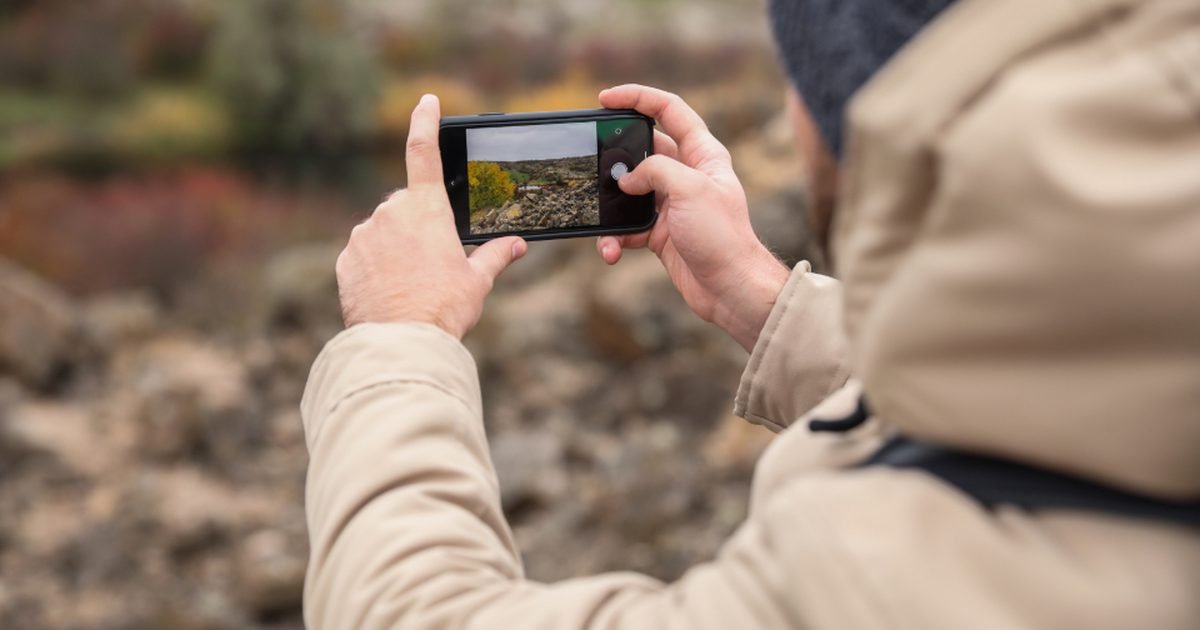
Location needs its own pass because it affects apps and Google account settings. Android lets you choose which apps get approximate or more precise location, according to Google’s Android privacy page. Google’s Location History help page also says Location History is a Google Account setting that can save places you go, routes and trips when it is turned on, and that you can turn it off or manage it in your account controls. Google’s Location History guide says it is off by default and can be reviewed or deleted.
For most everyday apps, approximate location is enough. Weather, local news and many shopping apps do not need your exact street. Navigation, ride pickup, delivery tracking and some camera map features may need precise location while you use them. Also check Google Maps Timeline or Location History if you use it. Some people like the trip record. Others would rather not keep it. The right answer depends on the value you get from it.
Keep camera and microphone controls easy to reach
On Android 12 and newer phones, Android shows a green indicator when an app uses the camera or microphone, and Google says you can tap that indicator to see which app or service is using it. Google’s camera and microphone help page also explains that you can add camera and microphone tiles to Quick Settings on supported devices, though phone makers may label or place them differently.
Add those tiles if they are not already visible. They are useful before video calls, banking checks, telehealth calls, voice notes or any moment when you want the phone’s sensors quiet. The point is not to live with camera and mic blocked all day. The point is to make the off switch close enough that you will use it. If an app stops working, Android usually makes the reason obvious, and you can turn access back on.
Check Play Protect before sideloading anything
Google Play Protect is not a full security plan, but it is a useful baseline. Google says Play Protect checks apps from the Play Store before download, scans apps from other sources for harmful behavior, warns about potentially harmful apps, and can remove or disable harmful apps. Google Play Help says Play Protect is on by default and recommends keeping it on.
Open the Play Store, tap your profile image, then Play Protect. Run a scan, check whether the device is certified, and be careful with any prompt asking you to install an app from a browser, file manager or chat link. If you sideload apps, keep it rare and deliberate. Install from the developer’s official site, turn off “install unknown apps” again afterward, and avoid apps that ask for accessibility, SMS or notification access without a clear reason.
Clean up old apps instead of only denying permissions
Permission changes help, but old apps still add clutter, update risk and notification noise. Android can pause activity for unused apps on some versions, and Google’s permission guide describes an unused-app setting that can remove permissions when an app has not been used for a while. That is helpful, but it is not a replacement for uninstalling apps you no longer need.
Open your app list and sort by recent use if your phone allows it. Remove old store apps, one-time event apps, abandoned games, duplicate scanners, coupon apps and utilities you installed for a single task. Keep a short “watch list” for apps you are unsure about, then decide next week. Fewer apps means fewer permission prompts, fewer background services and fewer privacy decisions to remember. For a deeper permission audit, AndroidLounge has a related guide on how to audit Android app permissions.
Watch notification, nearby device and photo access
Not every privacy issue looks dramatic. Notification access can expose message previews. Nearby device access can be needed for headphones, watches and smart home gear, but it should still make sense for the app asking. Photo and video access should be narrow when possible, especially for apps that only need one profile image or one receipt scan.
When an app asks for notification access, ask whether it is reading notifications or only sending them. Those are different kinds of power. When a companion app asks for nearby devices, allow it if you are pairing a watch, speaker or tracker. Deny it if the connection story is vague. For photos, use selected-photo access where your Android version and the app support it. The best privacy setting is the one that fits the task without opening the rest of your life.
Pros and limits of this privacy checkup
Pros: You can do the checkup without installing another app, most changes are reversible, and the highest-value fixes are simple: remove odd location access, limit camera and microphone use, keep Play Protect on, and delete apps you forgot about. It also teaches you where the controls live, which matters the next time an app asks for too much.
Cons: Android menus vary by brand, so Samsung, Pixel, Motorola and OnePlus phones may use different labels. Some apps are pushy and ask again after you deny a permission. A strict setting can also break a feature you wanted, such as live location sharing or background fitness tracking. Privacy is not a one-click state. It is a set of choices that should match how you use the phone.
Video: a quick walkthrough before you change settings
If you prefer to watch the flow first, this video covers Android privacy settings in a practical checklist style. Use it as a visual companion, then make the final choices based on the app list on your own phone.
Best for / skip if verdict
Best for: everyday Android users who install apps often, share a phone with family, use location-heavy services, or have not reviewed permissions in months. Skip if: you already run a strict permission routine and only need advanced threat-model advice. The main trade-off is convenience: tighter settings may add the odd prompt, but they reduce the amount of background access you forget about. Bottom line: do this once today, then repeat it every few months or after a big app cleanup.
FAQ
Will denying permissions break my apps?
Sometimes, but usually only the feature tied to that permission breaks. If you deny microphone access, voice recording will not work. If you deny precise location, a map may still open but pickup or turn-by-turn accuracy may suffer. Start with weaker settings, then loosen only when an app gives you a clear reason.
Should I turn off Location History?
Turn it off if you do not use Timeline or personalized location history. Keep it on if you value trip history and understand what is being saved. Either way, review and delete old history if it no longer helps you.
Is Play Protect enough to keep Android safe?
No single feature is enough. Play Protect is a useful baseline scan, but you still need app judgment, updates, strong screen lock, account security and caution with links or sideloaded files.
How often should I repeat this checkup?
Do it every three months, after buying a new phone, or after installing a batch of apps. Also run it when you notice new battery drain, odd notifications or an app asking for access that feels unrelated to its job.
Next step
Open Security and privacy, work through the sections above in order, and stop when the highest-risk permissions are cleaned up. When you are done, bookmark AndroidLounge’s app-permission audit and use it the next time an app asks for camera, contacts, location or microphone access.
Last reviewed: September 17, 2026
