Android Auto wireless sounds simple until the car refuses to connect, the phone pairs only for calls, or the screen works once and then drops the next morning. The key is that wireless Android Auto is not just a Bluetooth feature. Your phone, your car unit, your Wi-Fi connection and your first USB setup all have to line up before the cable can stay in the glove box.
This AndroidLounge guide walks through the checks in the order that saves the most time: compatibility first, then pairing, then the settings that stop random dropouts. It is written for everyday drivers who want the dashboard screen to work without learning every wireless standard by name.
The short answer before you start
Wireless Android Auto needs three things at the same time: a compatible Android phone, a car or aftermarket head unit that supports wireless projection, and a first connection that is allowed to use both Bluetooth and Wi-Fi. Google’s own Android Auto setup guide still tells drivers to check phone, car and cable requirements rather than treating every dashboard screen as ready for wireless use.
The easiest test is boring but useful. If your car manual, infotainment menu or dealer page says only “Android Auto” without “wireless,” assume cable first. If wireless is supported, do the first pairing while parked, with mobile data on, Bluetooth on, Wi-Fi on and the phone unlocked. If the car asks for a USB cable the first time, use a short data cable rather than a charge-only cable. Once the car profile is saved, wireless should start automatically on future drives.
What your phone needs
For most readers, the phone side is not the hard part. A current Android phone with the Android Auto app component built in should be able to run Android Auto, but older phones, work-managed phones and phones with heavy battery restrictions can still be the weak link. Google’s requirements page is the source to check if you are using an older handset or a car that behaves oddly after an update.
Before blaming the vehicle, update the phone software, restart the phone, and check that Android Auto has permission to use nearby devices, location where your phone asks for it, notifications and mobile data. Some phones also need unrestricted battery use for companion services that start the car session. If you use a VPN, private DNS app, aggressive cleaner, or work profile, test once with those disabled. You are not proving they are bad; you are finding out whether they interrupt the handoff between phone and car.
What your car or head unit needs
The car is where most confusion starts. Many vehicles support wired Android Auto but not wireless Android Auto. The dashboard may still show a phone projection icon, and Bluetooth audio may still work, which makes the missing wireless feature feel like a bug. It may simply be a hardware or software limit. Google’s Android Auto compatibility page is the first place to check, but the final answer often comes from the car maker’s manual because trims and regional packages vary.
Aftermarket stereos add one more layer. Some advertise wireless Android Auto, some need a firmware update, and some rely on a separate adapter. If the unit has both factory Bluetooth and an added wireless dongle, delete old phone profiles before pairing again. Two saved profiles with similar names can make the phone connect to calls on one device while the screen waits for another. If the car has a software update menu, run it while parked and connected to stable Wi-Fi, then retry pairing from scratch.
Why Bluetooth alone is not enough
Bluetooth is part of the handshake, not the whole pipe; the Bluetooth SIG overview explains Bluetooth as a short-range wireless technology, not a full dashboard projection system. In a wireless Android Auto session, Bluetooth usually helps the phone and car find each other and handle parts of the call connection. The dashboard interface then depends on a higher-bandwidth wireless link, commonly Wi-Fi between the phone and the car unit. That is why a phone can be paired for calls and music but still fail to launch Android Auto on the screen.
This matters when troubleshooting. If calls work but the map never appears, do not keep deleting only the Bluetooth entry; Google also keeps a separate Android Auto connection troubleshooting guide for failures after basic setup. Also check Wi-Fi, hotspot-style permissions, saved car connections inside Android Auto, and the infotainment unit’s phone projection settings. If your phone asks whether to let Android Auto turn on Bluetooth or Wi-Fi automatically, allow it. If you say no once, the car may keep looking ready while the phone refuses the background step it needs to complete the session.
Video walkthrough for the pairing flow
If you prefer to watch the process before changing settings, this troubleshooting video shows the kind of pairing and reset flow that helps when wireless Android Auto refuses to start. Use it as a visual companion, then come back to the checklist below so you do not skip the compatibility checks.
First-time setup that avoids most failures
Set up the first connection while parked, not while trying to leave. Turn the car on, unlock the phone, enable Bluetooth and Wi-Fi, and plug in with a known data cable if the car asks. Accept prompts on both screens. When the phone asks to remember the car, allow it. When the car asks whether to start Android Auto automatically, choose yes unless several people share the same vehicle and you need a manual choice each time.
Do not rush the first two minutes. Some cars create the Bluetooth profile first, then ask for projection approval, then switch to wireless. If you unplug during that middle step, the profile may save half-finished. If that happens, delete the phone from the car and delete the car from the phone, then start again. AndroidLounge’s simple rule is: one phone, one clean profile, one first setup. Add the second driver’s phone only after the first one is stable.
Settings that stop random dropouts
Dropouts usually come from power saving, competing wireless sessions, or a weak car-side connection. On the phone, open app settings for Android Auto and related Google services, then avoid the strictest battery limits. Also check that mobile data is on. Navigation, messaging and voice features are less useful if the phone is connected to the car but has no data route for live information.
In the car, remove old phone profiles you no longer use. If three family phones are saved and two are in the vehicle, the car may connect to the wrong one first. Keep Wi-Fi scanning and Bluetooth on when you start the drive. If your phone connects to a dash cam, portable hotspot or wireless adapter at the same time, test without that extra device. The goal is not to remove every accessory forever. It is to find the one that starts a second wireless session just as Android Auto is trying to launch.
When the cable still matters
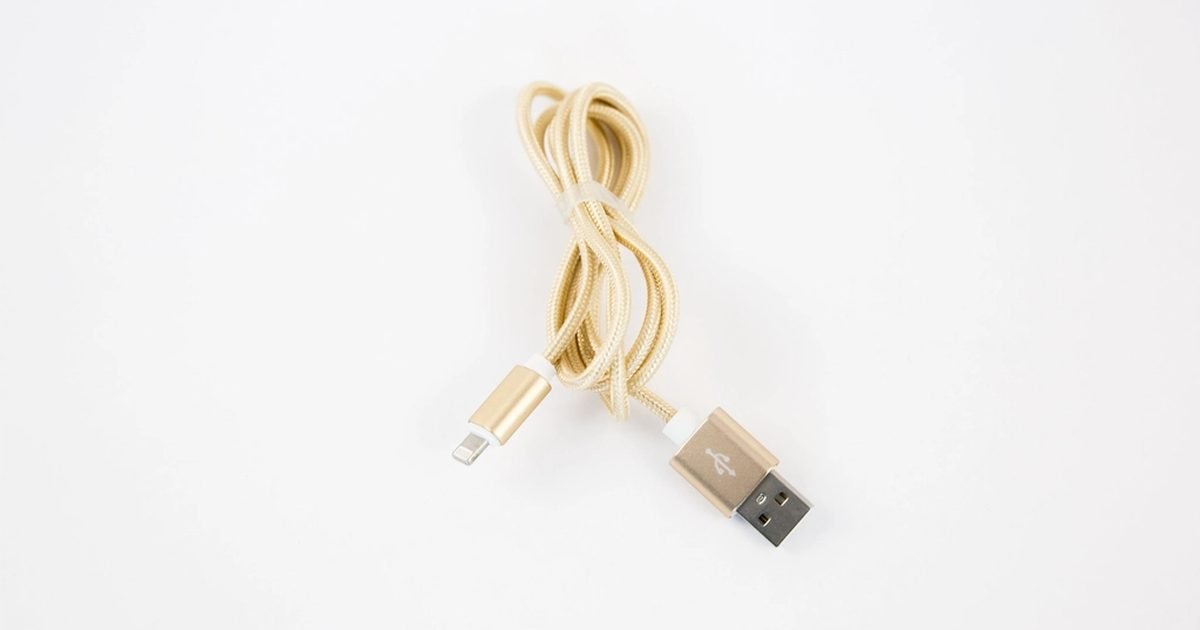
Wireless does not make cables irrelevant. A good USB data cable is still the fastest way to prove whether the basic Android Auto path works. If wired Android Auto fails too, the issue is probably not the wireless link. Check the USB port, clean the phone port gently, try the car’s main data port rather than a charging-only rear port, and avoid very long or damaged cables.
If wired works and wireless does not, you have narrowed the problem to compatibility, wireless pairing or settings. Keep a short cable in the car for rental vehicles, long trips and firmware updates. Wireless is convenient for daily drives, but cable fallback is still useful when the dashboard software gets confused after a phone update. A cable also charges the phone during navigation, which matters on older devices or long road trips with screen-on directions and music running for hours.
Common mistakes that waste time
The most common mistake is pairing Bluetooth and assuming the job is done. Bluetooth audio is not proof that Android Auto wireless is ready. The second mistake is using a charge-only cable during the first setup, then assuming the car rejected the phone. The third is leaving five old profiles in the car and wondering why the wrong phone keeps winning the connection race.
Another trap is chasing one setting at a time without resetting the saved profiles. If a bad profile was created during a failed setup, changing permissions may not fix that old entry. Delete both sides, restart the phone, restart the car system if your vehicle allows it, then pair again. Also avoid cheap wireless adapters until you know the car works with a cable. An adapter can be useful in the right vehicle, but it adds another app, firmware layer and support path. Solve the factory connection first where possible.
Pros and trade-offs of going wireless
Pros: Wireless Android Auto is cleaner for short trips, easier when the phone stays in a pocket or bag, and less annoying if your car has a wireless charging pad. It also reduces wear on the phone port because you are not plugging in for every errand.
Trade-offs: Wireless can use more battery, can be slower to start on some cars, and depends on the car’s infotainment software being stable. A wired connection is still simpler when you need reliability on a long trip. If your car drops wireless once a week but wired is perfect, the practical answer may be to use wireless for local driving and cable for navigation-heavy days. Convenience is the benefit; predictability is the trade-off.
Best for, skip if, and bottom line
Best for: drivers with a compatible car who take lots of short trips and want maps, calls and audio to start without plugging in every time. It is also good for cars with a tidy center console and a reliable wireless charging pad.
Skip if: your vehicle only lists wired Android Auto, your phone is old enough to struggle with updates, or you need the most stable connection for long navigation days. In that case, a good USB data cable is still the safer setup.
Bottom line: treat Android Auto wireless as a phone plus car plus Wi-Fi setup, not as a Bluetooth pairing trick. Check compatibility first, make one clean first connection, then fix battery and profile conflicts only if the problem continues.
FAQ
Can I connect Android Auto wirelessly with Bluetooth only?
No. Bluetooth helps with discovery and calls, but wireless Android Auto also needs a higher-bandwidth wireless connection between the phone and car. If Bluetooth audio works but the screen does not launch, check wireless Android Auto support and saved car profiles.
Why does Android Auto wireless work one day and fail the next?
The usual causes are an old saved profile, battery restrictions, the wrong phone connecting first, or the car unit failing to restart its wireless session cleanly. Delete the car profile on both sides, restart, then pair again while parked.
Do wireless adapters make every wired car wireless?
No. Some adapters work well in supported cars, but they cannot fix a car that does not run wired Android Auto correctly. Test the cable connection first, then consider an adapter only if the basic connection is stable.
Should I keep a cable in the car?
Yes. A short data cable is still useful for first setup, troubleshooting, long trips and charging. Wireless is convenient, but a cable remains the best fallback when you need the dashboard to work right now.
Next step
If your connection works but you are tightening the rest of your phone setup, read our Android privacy settings checkup next. It covers the everyday settings that make a phone safer without breaking the apps you rely on.
Disclosure: AndroidLounge may earn a commission if readers later buy products through affiliate links on the site. This article is informational and does not contain paid placement. Android is a trademark of Google LLC.
Last reviewed: September 29, 2026
