Before you fly, call your telco about roaming costs, or buy a travel eSIM if your phone supports it. Download offline Google Maps and Translate languages at home. Back up your phone, turn off auto-connect for Wi-Fi and Bluetooth, and avoid public USB chargers. These steps cut both bill shock and security risks.
Cooper is the Androidlounge editorial pen name. The roaming advice comes from the ACMA, the security tips come from Smartraveller, and the app steps come from Google’s help pages (all linked below). Nothing here comes from hands-on testing. Menu names differ a little between Pixel, Samsung and other phones.
Step 1: Sort out mobile data before you leave
Roaming charges are the classic travel tech mistake. The Australian Communications and Media Authority (ACMA) suggests asking your telco three things before you go: whether roaming is switched on for your account, what calls, texts and data will cost where you’re going, and how to turn roaming off.
You’ve got three main options.
| Option | How it works | Good for | Watch out for |
|---|---|---|---|
| Telco roaming pack | Add a travel pack from your Australian telco | Keeping your own number with no setup | Daily fees add up on long trips |
| Travel eSIM | Download a data-only eSIM for your destination | Cheap data, keeping your physical SIM for texts | Your phone must support eSIM and be unlocked |
| Local SIM | Buy a prepaid SIM at your destination | Long stays and heavy data use | You get a local number, and may need ID to buy one |
Australian telcos must send you usage alerts when you roam, at 50%, 85% and 100% of your included allowance, according to the ACMA. Don’t rely on them alone, though. If you go over, pay-as-you-go roaming can get expensive quickly.
Setting up a travel eSIM on Android
Most recent Pixel and Galaxy phones support eSIM, but check the exact model first. Your phone must also be unlocked from your telco to use another provider’s eSIM. On a Pixel, Google’s steps are:
- Open Settings > Network & internet > SIMs.
- Tap Add SIM, then follow the prompts to set up an eSIM, usually by scanning a QR code from the provider.
- Once it’s active, choose which SIM to use for mobile data. Leave your Australian SIM on for calls and texts if you want to stay reachable.
On a Samsung, eSIM settings live under Settings > Connections > SIM manager. Set up the eSIM while you still have reliable Wi-Fi, ideally at home, so you’re not stuck at an airport trying to scan a code.
Turning roaming off
If you don’t want any roaming charges at all, switch data roaming off. On a Pixel, go to Settings > Network & internet > SIMs, pick your Australian SIM and turn off Roaming. On a Samsung, go to Settings > Connections > Mobile networks and turn off Data roaming. Aeroplane mode with Wi-Fi turned back on is another option.
The ACMA also warns about cruise ships. Ships can use satellite networks that aren’t covered by normal roaming packs, so check with your telco before sailing, or keep aeroplane mode on at sea.
Step 2: Download offline maps
Google Maps can save areas to your phone so you can navigate without data. Google’s help page explains the steps.
- Open Google Maps and search for your destination city.
- Tap your profile picture, then Offline maps.
- Tap Select your own map, adjust the box, then tap Download.
There are limits. Offline maps give you driving directions, but not public transport, cycling or walking directions. Google says offline maps expire after a while unless they update, so leave auto-update on and connect to Wi-Fi every couple of weeks on a long trip.
Step 3: Download Google Translate languages
Google Translate can work without data once you download a language. In the Translate app, find the languages you need and tap the download option next to each one. Google’s help page has the current steps. Do it at home on Wi-Fi, because language files can be large.
The camera translation feature is handy for menus and signs. It’s worth trying once at home so you know how it works before you need it.
Step 4: Back up and lock down your phone
Smartraveller’s cyber security advice is aimed at Australians heading overseas. These are the main points for an Android phone.
- Back up first, and leave the backup at home. If your phone is lost or stolen, you’ll still have your photos and contacts. Our guide to a full Android backup covers how.
- Update everything. Install the latest Android and app updates before you go.
- Use a strong screen lock and turn on two-step verification for your Google Account and banking apps.
- Turn off auto-connect for Wi-Fi networks, and turn off Bluetooth and nearby sharing features when you’re not using them.
- Avoid public USB charging points. Use your own charger and a power point, or carry a power bank.
- Be careful on public Wi-Fi. Avoid banking on hotel or airport Wi-Fi. Mobile data is safer. If you do use public Wi-Fi often, our guide to free vs paid VPNs explains which are worth trusting.
Also make sure Find Hub (formerly Find My Device) is on, so you can locate, lock or wipe your phone if it goes missing. Write down your Google Account recovery details and keep them separate from your phone.
Step 5: Load the useful apps at home
Install the apps you’ll need before you leave, while you’re on Australian Wi-Fi and your usual app store account. That includes your airline app, accommodation apps, a ride-share app that works where you’re going, and the local public transport app if there is one.
Only download apps from the Play Store. Fake transport and ticketing apps do turn up, so check the developer name before installing. Our guide to downloading Android apps safely covers the warning signs. Sign in to each app and check it works before you leave. Banking and other apps often send a verification code by text to your Australian number, which is much easier to receive at home than on a beach.
Step 6: Save the emergency numbers
Save the Australian Government’s 24-hour Consular Emergency Centre in your contacts. Smartraveller lists +61 2 6261 3305 from overseas, or 1300 555 135 from within Australia. Also look up the local emergency number for each country you visit, because it isn’t always 000 or 112.
Step 7: Pack the right charging gear
Australia uses Type I power points, and most countries don’t, so you’ll need a travel adaptor for the places you’re visiting. Check the label on your phone charger before you plug it in overseas. Most modern phone chargers accept anything from 100 to 240 volts, which covers almost everywhere, but older or cheap chargers may not.
A power bank is worth packing too. It saves you from hunting for a power point on long travel days and means you never need a public USB charging point. Airlines limit power banks to carry-on luggage and set size limits, so check your airline’s rules before you fly.
Long days of navigation and photos drain batteries faster than usual. If your phone struggles to last the day at home, our guide to finding the app that’s draining your battery is worth a look before you go.
At the airport and on the plane
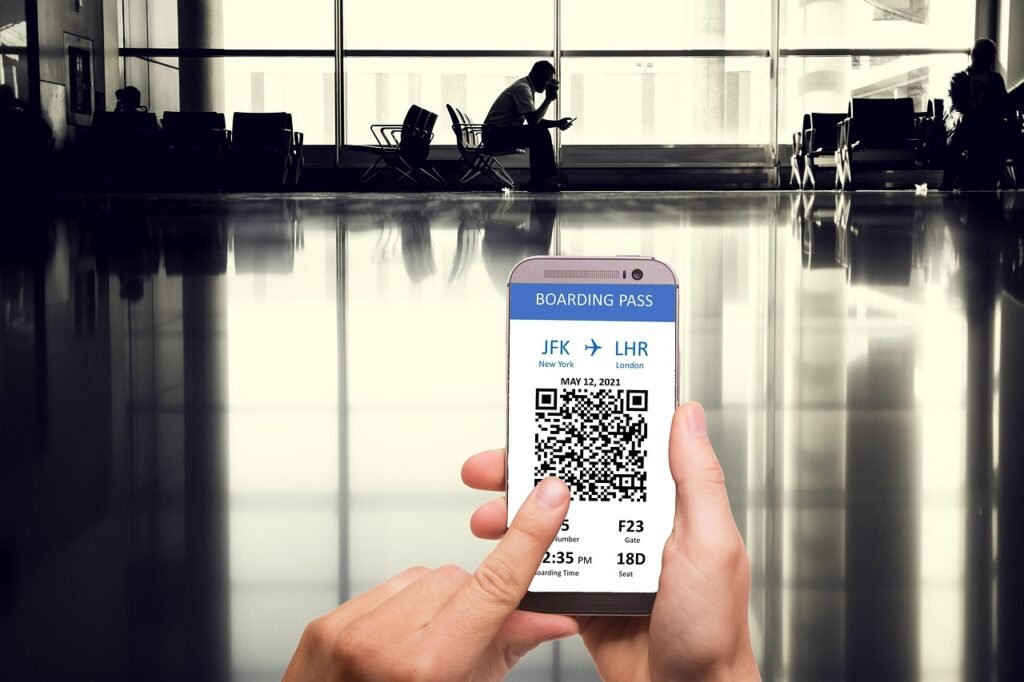
Keep your phone charged for mobile boarding passes, and save a screenshot of each pass in case the airline app won’t load. Turn on aeroplane mode when the crew asks. You can turn Wi-Fi and Bluetooth back on afterwards to use in-flight Wi-Fi or wireless earbuds, if the airline allows it.
When you land, wait until you’re on your eSIM or roaming pack before turning mobile data back on. That way, the phone doesn’t start syncing photos on expensive pay-as-you-go roaming.
If your phone is lost or stolen overseas
- Use Find Hub from another device to lock or locate it.
- Call your telco to block the SIM, so nobody runs up roaming charges.
- Change your Google Account password and check your banking apps.
- Report it to local police and get a report number for your travel insurer.
FAQ
Is a travel eSIM cheaper than roaming?
Often, yes, for data. But prices vary by country and provider, so compare your telco’s travel pack with an eSIM for your destination before you buy.
Can I keep my Australian number while using a travel eSIM?
Yes, on dual-SIM phones. Keep your Australian SIM on for calls and texts, and use the eSIM for data. Turn data roaming off on the Australian SIM.
Do Google Maps offline maps include public transport?
No. Google says offline maps give driving directions only, not public transport, walking or cycling directions.
Is it safe to charge my phone at airport USB points?
Smartraveller advises against public USB charging points. Use your own charger in a power point, or a power bank.
Should I take my main phone overseas?
Most people do. Back it up first, leave the backup at home, and lock down your accounts as above.
Sources
- ACMA: Using your mobile or smart device overseas
- Smartraveller: Protecting your cyber security when travelling overseas
- Google Maps Help: Download areas and navigate offline
- Google Translate Help: Download languages to use offline
- Pixel Phone Help: Get a SIM or eSIM and add it to your Pixel phone
Last reviewed: November 24, 2026
