
Do Android phones slow down over time? Yes, many Android phones can feel slower after years of use, but it is rarely one mystery switch that flips. The usual causes are crowded storage, heavier apps, background work, heat, battery ageing and software that has moved on from the phone’s hardware. The useful question is not “is Android bad?” It is “which bottleneck is this phone hitting, and is it worth fixing?”
This AndroidLounge guide keeps the answer practical. You will get a short diagnosis order, the fixes that are worth trying, the ones that waste time, and the point where replacing the phone is the honest answer.
Short answer: phones age in layers, not all at once
A slow phone usually has several small problems stacked together. A nearly full storage drive makes updates, camera saves and app launches feel sticky. Apps grow larger and ask for more memory than they did when the phone was new. Background sync, location checks, widgets and notifications add work even when you are not actively using the app. Heat can make a phone reduce performance to protect itself, especially during gaming, navigation, charging or video calls. Older batteries can also make a phone less predictable under heavy load, even if the screen still shows a fair amount of charge.
That is why two people can own similar phones and report different results. A light user with spare storage may be fine after four years. A heavy user with 200 apps, little free space and a warm case may feel lag after two. Google’s own slow-device help starts with simple checks: restart, update, clear space, update apps, close or remove problem apps, then consider reset only after other steps fail. Google’s Android Help also notes that phones can start having issues when storage drops below 10% free.
The first check: separate phone lag from network lag
People often describe a phone as “slow” when the real problem is the connection. If web pages crawl, maps fail to load or messages sit unsent, test Wi-Fi and mobile data before changing phone settings. Open a downloaded app such as calculator, notes, camera or settings. If those feel normal but online tasks lag, the phone may be fine and the network may be the bottleneck.
Try the same task on Wi-Fi and then on mobile data. Move closer to the router, turn airplane mode on and off, and check whether another device on the same network is also slow. If only one app is slow, the app service may be having a bad day. If every offline action is slow too, move on to the phone checks below. This split matters because deleting apps will not fix poor Wi-Fi, and a router reboot will not fix a phone that is out of storage.
Storage is the most common fixable cause
Start with storage because it is easy to check and often easy to improve. Open Settings, search for “Storage”, and look at what is taking space. Photos, video, downloads, messaging media and offline maps can quietly fill a phone. You do not need to chase a perfect number, but if the phone is close to full, clear enough room that updates and temporary files have space to work.

Google’s Android Help says Android can delete temporary files, revoke permissions, stop background activity and stop notifications for apps you have not used for a long time through its unused-app handling. Google’s unused apps help explains that this is meant to optimize apps you have left alone. For a manual pass, remove games you finished, old shopping apps, duplicate photo tools and launchers you tried once. Keep banking, authenticator and messaging apps until you have backed up or moved anything important.
If you want a safer cleanup, use the Files app or your phone maker’s storage screen rather than a random “booster” app. Files by Google Help says the app can help clear temporary app files, duplicate files, recommended files, screenshots and unused apps on supported devices.
Background apps: close less, audit more
Swiping every app away from the recent-apps screen feels productive, but it is not a long-term speed plan. Android already manages memory and background work. The better move is to identify apps that constantly wake, sync or send notifications. Look under Settings, Apps, Battery, Background usage or similar wording. The exact path varies by Samsung, Pixel, Motorola, OnePlus and other brands, but the pattern is the same: find the noisy apps, then restrict, uninstall or change their notification and sync settings.
Android itself includes background limits. The Android Open Source Project explains that App Standby can defer background network activity and jobs for apps the user is not actively using. AOSP’s app power management documentation is written for developers, but the everyday takeaway is simple: the platform already tries to protect battery and background performance. Your job is to remove the apps that keep earning exceptions because you open them, allow notifications, keep widgets active or grant broad permissions.
If you want a related privacy pass while you are there, AndroidLounge’s app permissions audit pairs well with this cleanup because many “always allowed” permissions also create background work.
Use safe mode when one app is the suspect
If the phone was fine last month and terrible this week, think like a detective. What changed? A new launcher, keyboard, cleaner, VPN, antivirus app, wallpaper app or game overlay can make the whole phone feel worse. The fastest test is safe mode, which temporarily turns off downloaded apps so you can see whether the base phone behaves normally.
Google’s safe mode guidance says downloaded apps can cause a phone to restart, freeze, crash or run slow, and it recommends checking whether the problem goes away in safe mode. Google’s safe mode help also suggests removing recently downloaded apps one by one after leaving safe mode, then restarting normally after each removal. That sounds slow, but it prevents the classic mistake: uninstalling ten apps, losing useful data, and still not knowing which app caused the problem.
Before using safe mode, take a screenshot of your home screen if you rely on widgets. Some widgets may disappear temporarily. Also check your phone maker’s support page for the exact button sequence, because safe mode entry differs by device.
Heat and battery age can make speed inconsistent
Performance that comes and goes is often heat. A phone may feel fast for five minutes, then stutter during navigation, gaming, video recording or charging. That does not always mean something is broken. Small phones have small cooling systems, and thick cases can trap heat. Direct sun in a car mount can make even a good phone feel poor.
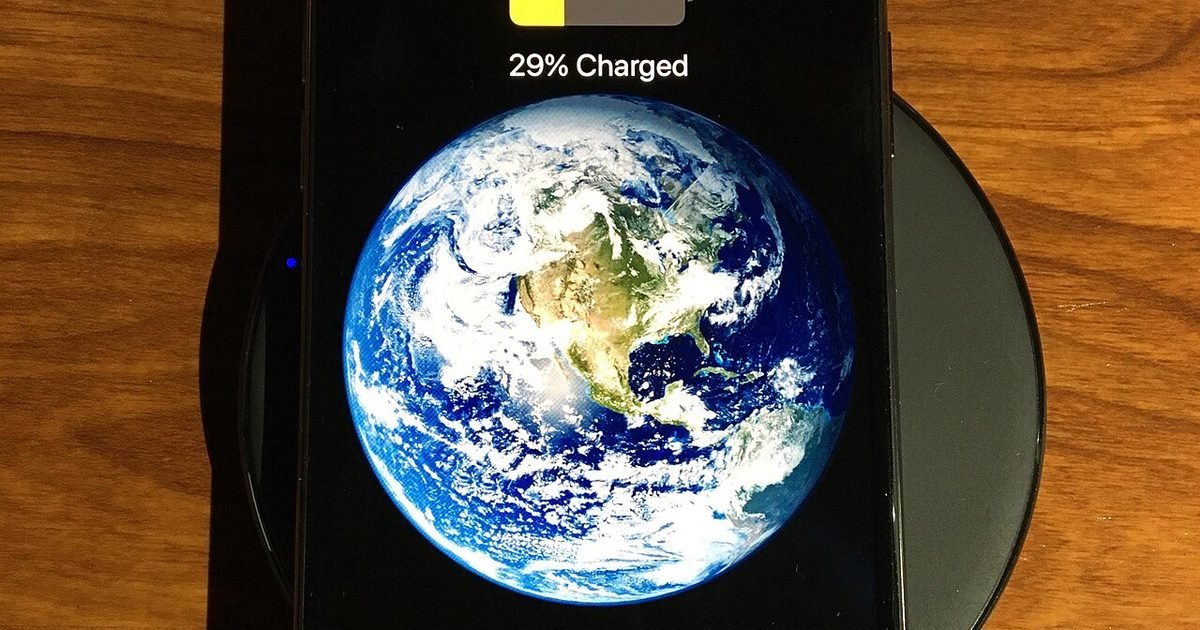
Battery age is harder to judge from one setting screen. As batteries wear, they may hold less charge and sag faster under heavy load. You may notice sudden drops, shutdowns under load, or a phone that behaves better while cool and plugged in. That is a hardware clue, not a sign that a “speed booster” will help. If the phone is still good otherwise, a battery replacement from a reputable repairer can make more sense than replacing the whole device. If the phone is also out of software support and short on storage, the repair case gets weaker. For the broader replacement question, this Nexgadgets guide on how long a phone should last is a useful companion read.
Updates can help, but they can also expose old hardware
System and app updates matter because they bring bug fixes, security patches and compatibility improvements. Check Settings, System, Software update, then update important apps from your app store. If your phone has been waiting on updates for months, it may be running old app versions against newer services.
At the same time, updates do not turn old hardware into new hardware. Apps add features, camera processing gets heavier, web pages load more scripts, and modern messaging apps handle richer media than they used to. A budget phone that felt fine on day one can still be doing its job correctly while feeling less generous three years later. That is not planned failure by itself. It is the normal pressure of newer software asking more of the same chip, memory and storage.
The practical rule: update first, then judge. If performance improves, keep going. If the phone gets worse only after a major update, give it a few days to finish indexing and app updates, then review storage and background apps again.
What actually helps, and what usually does not
Helpful fixes are boring because they attack the real bottleneck. Restart the phone. Keep enough free storage. Remove apps you do not use. Update the system and apps. Reduce widgets and live wallpapers. Turn off notifications you never act on. Test safe mode for sudden lag. Back up important data before any reset. If you factory reset, restore only the apps you truly need instead of bringing back the same clutter.
What usually does not help: daily cache-clearing rituals, task-killer apps, mystery RAM boosters, aggressive antivirus apps from unknown vendors, and deleting random folders you do not understand. Some cleanup apps add more background work than they remove. Some also push ads or ask for permissions they do not need. If an app promises to make every Android device dramatically faster with one tap, be skeptical.
Here is the honest trade-off: a careful cleanup can make a neglected phone feel normal again, but it cannot add memory, change the processor or restore years of battery wear. Fix the fixable parts first, then decide whether the remaining slowness is something you can live with.
Verdict: best for, skip if, and the main trade-off
Best for: anyone whose Android phone has become slow gradually and still receives updates, charges normally and has no obvious hardware damage.
Skip the long cleanup if: the phone is out of security support, has a weak battery, has very little storage even after cleanup, or freezes during basic tasks right after a reset.
Main trade-off: troubleshooting costs time but can save money; replacing the phone costs more but may be the only fix when hardware is the ceiling.
Bottom line: Android phones do slow down over time for real reasons, but the first fixes are simple: storage, apps, updates, heat and safe mode. If those do not change the experience, the phone may have reached its practical limit.
Watch: a step-by-step slow phone fix
FAQ
Will a factory reset make an old Android phone fast again?
Sometimes, but only if software clutter was the main problem. A reset removes apps and local data, so back up first. If the phone is slow because of weak hardware, battery age or heat, a reset may help for a short time and then feel the same once your apps return.
How much free storage should I keep?
Google’s slow-device help says phones can start having issues when less than 10% of storage is free. Treat that as the danger zone, not the goal. If you can keep a larger cushion, updates, photos and app caches have more room to work.
Do booster apps speed up Android phones?
Usually no. Android already manages memory and background activity. A booster that runs all day, shows ads or asks for broad permissions can add the same kind of background load you are trying to remove.
Is it better to replace the battery or buy a new phone?
Replace the battery if the phone is still supported, has enough storage and does everything else you need. Buy new if the battery is only one of several problems, especially if updates have ended or basic apps now lag after a clean reset.
Next step
If your phone feels slow and cluttered, start with storage and app permissions this week, then use safe mode only if the lag remains. For more plain-English phone setup help, browse the AndroidLounge Trends & Tech guides. AndroidLounge may earn from ads or affiliate links where available; this article is general information, not repair advice. Android is a trademark of Google LLC.
Last reviewed: October 5, 2026
