Disclosure: AndroidLounge may earn a commission if you buy through links on this site. This article is editorial and does not include paid product placement.
Setting up an Android phone for an older parent, partner, or relative is not just a question of making the text bigger. The real goal is a phone they can answer, charge, find, unlock, and trust without calling you every second day. That means fewer confusing choices, clearer contacts, safer settings, and a backup plan for the moments when something goes wrong.
This AndroidLounge checklist focuses on practical changes you can make in one sitting. It works best if you sit with the person who will use the phone, make each change in front of them, and write down the few gestures or passcodes they actually need. The payoff is simple: less fear of tapping the wrong thing and more confidence using the phone for calls, messages, photos, maps, and appointments.
Start with the person, not the phone
Before you open Settings, ask three plain questions: what do they already use, what annoys them, and what must work in an emergency? The best Android setup is not the one with the most features. It is the one where the important actions are easy to repeat.
Write a short usage list on paper: call family, answer messages, take photos, check calendar, use maps, pay at shops, or avoid online banking entirely. Then decide what should be on the home screen. If an app is not part of the weekly routine, hide it in the app drawer or remove it. Google says Android includes accessibility settings such as TalkBack, display size, font size, magnification, caption options, Voice Access, and Switch Access, but not every user needs every tool. Pick the few that solve the person’s real problem.
Choose a phone that will not fight them
If you are buying rather than repurposing a spare device, keep the choice boring. A large, bright screen matters more than a high-end camera. A recent Android version matters more than a flashy design, because security updates and accessibility features are easier to support when the software is current. A case with a textured grip, raised edges, and a clear charging port cutout is also worth more than most spec upgrades.
For many older users, a mid-range Android phone from a mainstream brand is easier to live with than the cheapest model available. Cheap phones can have dim displays, weak speakers, limited storage, and short software support. Flagship phones can be too large, slippery, or expensive to replace. Aim for a phone that feels comfortable in one hand, has loud speaker output, supports fingerprint or face unlock, and has enough storage for photos, WhatsApp, and system updates.
Make the display readable before adding apps

Display settings are the first win. Increase font size, increase display size, turn on dark theme if it helps, and test the lock screen, phone dialer, messages, camera, and notification shade.
Android’s accessibility guidance points users to display size, font size, magnification, color correction, color inversion, dark theme, and high-contrast or outlined text depending on Android version Google Accessibility overview. Magnification is useful for menus, maps, and fine print, but only if the user can remember how to turn it off. If they cannot, skip it and use larger system text instead. The test is not whether the feature is clever. The test is whether they can use it alone tomorrow.
Use accessibility tools only where they reduce effort
TalkBack, Select to Speak, Voice Access, captions, and Sound Notifications can be life-changing for the right person. They can also make a phone feel broken if switched on without explanation. TalkBack changes touch behavior, which is good for a trained blind or low-vision user but confusing for someone who only needed larger text.
For hearing needs, check ringtone volume, notification volume, vibration strength, Live Caption where available, and caption preferences in video apps. For motor needs, increase touch and hold delay, simplify navigation, consider three-button navigation if gestures are causing missed swipes, and place the most-used apps within easy thumb reach. Google documents current TalkBack changes separately from the broad accessibility overview, including reading, punctuation, image-description, and Braille improvements Google TalkBack 15.0 help. If you enable a tool, teach only the two or three commands they need first.
Clean the home screen into a daily dashboard
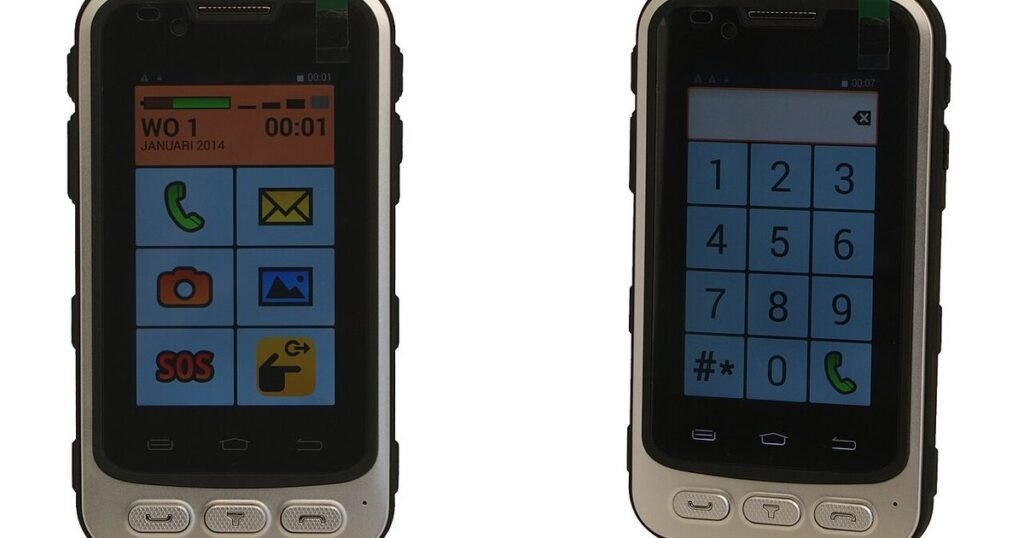
A good senior-friendly home screen is closer to a fridge door than a computer desktop. It should show the people and actions that matter every day. Put Phone, Messages, Camera, Photos, Weather, Calendar, Maps, and the main family chat app on the first screen. Use folders only if the person already understands folders. Otherwise, folders hide things. Remove duplicate apps, carrier apps, games, old setup tools, and anything that sends noisy offers.
Use contact shortcuts for two or three trusted people. On many Android launchers, you can long-press the home screen, add a widget, and choose a direct dial or contact widget. Keep the dock simple: Phone, Messages, Camera, and one chat app. AndroidLounge readers often ask for “the best launcher,” but removing clutter from the launcher already installed is usually the better first move.
Set up calls, contacts, and video chat for real life

Contacts are where small mistakes become daily pain. Merge duplicate contacts, add clear names, and use photos for the people they call most. “Sarah daughter” is more useful than three entries that all say Sarah. Add favorites inside the Phone app and test calling from the lock screen, home screen, and recent calls.
For video calls, choose one app and make it the family standard. Do not install five calling apps “just in case.” Put the main video app on the home screen, sign in, start a test call, and show how to flip the camera, mute, end the call, and turn volume up. The goal is not a perfect communications setup. It is a repeatable path: tap this face, answer this green button, press this red button to finish.
Lock it down without locking them out
Security settings should protect the person without turning every day into a passcode test. Use a lock screen, but choose a method they can reliably use. Fingerprint unlock is convenient for some people, but it can fail if fingers are very dry, worn, or hard to place on the sensor. Face unlock can be simpler, but it depends on the phone and lighting. A short PIN may be necessary as a backup, and it should be stored in a safe family password record, not hidden on a loose sticky note attached to the phone.
Set up Google Find My Device so the phone can be located, locked, or erased if it is lost. Google’s Find My Device, now part of Find Hub, explains that Android devices can be found, secured, or erased when the feature and account conditions are met Google Find My Device Help. Review app permissions too. Remove location, microphone, camera, and contacts access from apps that do not need them. If privacy is the main concern, pair this setup with our Android privacy and tech guides so the phone stays simple after the first week.
Prepare emergency information before it is needed
Emergency settings are easy to postpone, which is why they should be done during setup. Add emergency contacts, medical information, allergies, medications, and any notes the person is comfortable showing from the lock screen. Google’s Android emergency help says users can add medical information and emergency contacts, and can choose whether emergency information is shown when the phone is locked Google Android emergency help. Test where that information appears on the actual phone, because Samsung, Pixel, Motorola, and other Android brands can arrange menus differently.
Also check Emergency SOS behavior. Some phones call emergency services after repeated power-button presses. That can be useful, but accidental triggers scare people. Explain exactly what the shortcut does and let them decide whether to keep it on. Add ICE-style contacts, but do not rely only on labels. If the person has a medical alert device, the phone is one layer, not the whole safety plan.
Control notifications, scams, and payment risk
Many older users do not fear the phone itself. They fear doing the wrong thing after a strange message appears. Reduce that risk by cutting notification noise. Turn off promotional alerts from shopping apps, games, carrier apps, and news apps that send too many headlines. Keep calls, texts, calendar, medication reminders, and family chat alerts.
Talk through scam patterns in concrete terms: a bank will not ask for a password by text, a delivery message with a strange link should be ignored, and a family emergency money request should be confirmed by calling the person directly. The U.S. Federal Trade Commission warns consumers not to click links or respond to unexpected messages asking for personal or financial information FTC spam text guidance. For payments, decide whether mobile wallet use is appropriate. If it is, add one card, set purchase alerts, and teach how to lock the card.
Back up photos, passwords, and the recovery plan
A phone setup is not finished until recovery is possible. Turn on photo backup if the person wants family photos protected. Check that contacts sync to the right Google account. Write down the Google account email, recovery email, carrier PIN if one exists, screen unlock backup method, and where the SIM or eSIM details live. Keep that record somewhere safe and shared with the trusted helper, not inside the phone only.
Password managers can help, but only when the person understands the master password and recovery path. For some families, a small set of written emergency credentials stored securely is more realistic than a full password-manager rollout on day one. Set a recurring reminder to check updates, storage, backup, and app permissions every few months.
Pros and cons of simplifying an Android phone
Pros:
- Fewer home-screen choices make calls, messages, camera, and maps easier to find.
- Bigger text, clearer contrast, and louder alerts reduce small daily frustrations.
- Emergency contacts, medical info, and Find My Device create a safer backup plan.
- Cleaner notifications make scam messages and real family messages easier to tell apart.
Cons:
- Too much simplification can hide features the person may want later.
- Accessibility tools such as TalkBack can confuse users if enabled without training.
- Family helpers need to document changes, or the next helper may not know what was changed.
- Brand-specific Android menus mean the exact path can differ by phone.
Best for, skip if, and the bottom line
Best for: families setting up a first smartphone, replacing an older phone, or making an existing Android less stressful for an older user. It is also useful after a scam scare, a lost phone, or a run of missed calls.
Skip if: the person already uses advanced Android features confidently and only wants a new device recommendation. In that case, focus on buying criteria, software support, and data transfer instead.
Bottom line: a senior-friendly Android phone is not a special mode. It is a normal phone with the noisy parts removed, the important actions made obvious, and the safety settings checked before they are needed.
Watch: Android accessibility updates
This official Android accessibility video shows how Google frames newer accessibility features before you decide which ones to enable: Android accessibility updates on YouTube.
FAQ
Should I turn on a senior mode or install a special launcher?
Only if the standard home screen is still confusing after cleanup. Start with larger text, fewer apps, contact shortcuts, and clearer notifications. If that still fails, then try a senior-focused launcher and document how to exit it.
Is Android or iPhone easier for seniors?
Either can work. Android is flexible, often cheaper, and available in many sizes. iPhone is more consistent across models and can be easier if the whole family already uses Apple services. The better choice is usually the phone the main helper knows well enough to support patiently.
How often should I check the setup?
Check it after the first week, then every few months. Look for full storage, failed backups, too many notifications, missing updates, unknown apps, and contacts that need cleanup. Small maintenance prevents the phone from becoming confusing again.
What should be written down for emergencies?
Record the Google account email, recovery method, screen lock backup, carrier support details, emergency contacts, and where photo backup goes. Do not store banking passwords in an easy-to-find note. Keep the recovery sheet somewhere secure that a trusted helper can access.
Next step
After the phone is usable, spend 20 minutes reviewing privacy settings, app permissions, and notification permissions. That second pass is what keeps a clean setup from turning back into a noisy, risky phone six months later.
Last reviewed: September 20, 2026
