
Disclosure: This AndroidLounge guide is editorial and not sponsored. It does not use affiliate links.
The right Android setup is not one harsh switch. It is a small system: identify likely spam, send the worst calls away, keep real people reachable, and review mistakes before they become habits.
Start with the goal, not the most aggressive setting
Most people want fewer interruptions, not a phone that rejects every unknown number. That difference matters. A plumber, job recruiter, travel desk, medical office, delivery driver, or new school contact may call from a number you have never saved. If your setup treats every unknown number as junk, you may solve the spam problem and create a life-admin problem.
The safer goal is a layered filter. Let Android warn you when a call looks suspicious. Let obvious spam go quiet where your phone supports it. Keep voicemail on, because genuine callers can still leave a message. Add repeat legitimate callers to Contacts after you confirm them. Block numbers that prove themselves to be junk, but avoid mass-blocking whole groups unless you understand the cost.
AndroidLounge’s view is simple: the best spam-call setup is boring. It should reduce noise without making you babysit settings every day. Use warnings and spam filtering first, then add tighter blocking for repeat offenders.
Turn on caller ID and spam protection first
On many Android phones, the first stop is the Phone app, not a separate cleaner app. Google’s Phone app support page says caller ID and spam protection can show information about callers or businesses not in your contacts, and it can warn about suspected spam calls. Google also says you can turn caller ID and spam protection on or off inside the Phone app settings. Google Phone app caller ID and spam protection
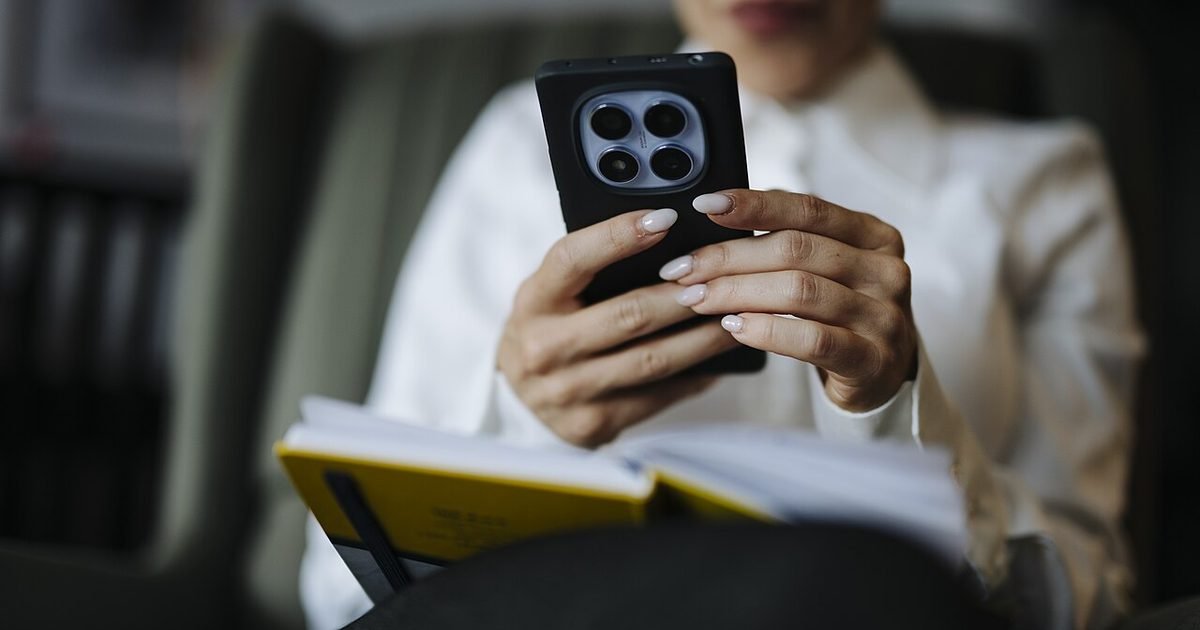
Open the Phone app, tap the menu, go to Settings, then look for Caller ID and spam, Spam and Call Screen, or a similar label. Names vary by phone maker and region, so do not panic if the wording differs. Check whether your phone can identify likely spam and filter it before it rings.
If you share the phone with a parent or less technical family member, explain that a warning does not prove a call is fake. It means the number has signs that deserve caution.
Use Samsung Smart Call if that is what your phone offers
Samsung phones often use Samsung’s own call protection instead of the exact Google Phone menu. Samsung’s US support page describes Smart Call as a feature that helps identify unknown callers and can block or report spam calls; names and availability can vary by country and carrier. Samsung Smart Call support
On a Galaxy phone, open the Phone app, tap the three-dot menu, choose Settings, and look for Caller ID and spam protection or Smart Call. If you see a toggle for spam and scam call protection, turn it on. If your model offers different protection levels, start with the default or standard level before using the strongest one. Stronger blocking can be useful, but it also raises the chance that borderline calls get hidden.
The Samsung route is not worse than the Google route. It is just different. Use the built-in phone-maker option first, because it is tied to your dialer, call log, and blocking tools. Add third-party call blockers only if the built-in setting still leaves too much noise.
Know what Call Screen can and cannot do
Some Pixel phones support Call Screen, which lets Google Assistant ask who is calling and why before you answer. Google’s help page says Call Screen works on supported Pixel devices, and feature availability can depend on country, language, and device. Google Call Screen help
That makes Call Screen useful, but not universal. Do not write a family setup guide that assumes every Android phone has it. On a supported Pixel, it is best for calls where you are unsure but do not want to ignore the person completely. The caller gets a chance to explain, and you can decide whether to pick up.
For everyday use, treat Call Screen as a middle lane. Answer known contacts yourself. Let obvious spam get filtered. Screen the uncertain calls that arrive at bad moments. If the caller refuses to say who they are, that tells you something. If the caller gives a clear reason, you can answer or call back.
Add the National Do Not Call Registry, but do not expect magic
If you are in the United States, add your number to the National Do Not Call Registry. The FTC explains that the registry is meant to stop sales calls from real companies, but it does not block calls from scammers or all unwanted callers. FTC National Do Not Call Registry FAQs
That is why the registry belongs in your setup, but not as the whole setup. It may reduce legal telemarketing over time. It will not stop a scammer who is already breaking the law, spoofing a number, or calling from another system. Think of it as background protection, not a ring blocker.
Do not let unknown callers become invisible too quickly
The bluntest setting is usually some version of block unknown numbers or send non-contacts straight to voicemail. It can be helpful for a spare phone, a child’s device, or a number that only family uses. It is risky on a main phone.
Before you use a strict unknown-caller rule, list the people who may need to reach you from numbers you do not recognise. Doctors often call from a clinic switchboard. Banks may use fraud teams or callback systems. Tradespeople may use mobile numbers. Schools, care providers, insurance teams, government offices, and delivery services can all appear as unknown or unfamiliar numbers.
A safer version is to use strict blocking during narrow periods, then turn it off when you expect a delivery or appointment call. Let voicemail catch the grey area. Real callers usually leave a useful reason; spam callers often leave silence or a vague threat.
Handle repeat spam with block and report habits
Once a number has proved itself to be junk, block it. In the Phone app, open Recents, tap the number, then look for Block or report spam. The exact wording depends on your dialer, but the pattern is similar: identify the number from the call log, open its details, and choose the blocking option.
Reporting matters when the phone offers it, and blocking matters for your own peace. Do not spend ten minutes investigating every spam number. Many scam calls use spoofed or rotating numbers, so deep research often wastes more time than it saves.
Use a quick triage rule. If the call was silent, threatening, robotic, or demanded a code or payment, block and report. If the caller claimed to be from a bank, delivery company, government office, or support desk, do not call back from the call log. Go to the official source and start a fresh contact path. That habit protects you even when caller ID looks convincing.
Be careful with third-party call blocker apps
A call blocker app can help, especially if your phone maker’s built-in filter is weak. But it is also a sensitive category. A dialer or call-screening app may ask for access to contacts, call logs, phone status, notifications, or SMS. Those permissions can be legitimate for the job, but they are not small permissions.
Before installing one, check three things. First, does your built-in Phone app already solve most of the problem? Second, does the app come from a company you recognise and still receive updates? Third, are the permissions proportionate to the features you will actually use? A flashlight-level utility asking for call logs would be a red flag. A call-screening app asking for call access is more understandable, but still worth reading carefully.
Set up a family-safe version for older adults
For an older parent or anyone who finds phone settings stressful, make the setup visible and simple. Turn on the built-in spam warning. Add close family, the GP or doctor, pharmacy, school, care service, bank, building manager, and regular delivery contacts to the address book. Give those contacts clear names, such as “Doctor Collins Clinic” rather than only a first name.
Then write down two rules. One: if the phone says suspected spam, do not answer unless you are expecting that call. Two: if anyone asks for a code, password, bank transfer, gift card, remote-access app, or urgent payment, hang up and call family or the company’s official number. The rule should be about behaviour, not about recognising every scam style.
Do not shame someone for answering a bad call. Spam is designed to create pressure. The useful setup reduces pressure before the call starts. A clean contact list, spam warnings, voicemail, and a short family rule beat a complicated app that nobody understands.
Use a monthly five-minute review
Spam-call settings are not a set-and-forget job forever. Once a month, open the call log and look for patterns. Are important calls being missed? Are spam calls still ringing during dinner? Are blocked numbers piling up without reducing the problem? Small adjustments beat a full reset.

Check three things. First, make sure caller ID and spam protection are still on after phone updates or app changes. Second, look through blocked numbers and unblock anything that was added by mistake. Third, add legitimate repeat callers to Contacts so they are less likely to be treated as strangers.
This is also a good time to review voicemail. If real callers leave messages and spam does not, you can be more confident with stronger filtering. If legitimate callers rarely leave messages, be more cautious. The aim is a phone you trust again. You should not have to answer every ring, but you should not be afraid of missing the calls that matter.
Pros and cons of a tighter spam-call setup
Pros: fewer junk interruptions, clearer warnings before you answer, easier blocking from the call log, and a safer setup for family members who feel pressured by unknown callers. Built-in tools are also easier to explain than a stack of separate apps.
Cons: no filter is perfect. Some spam will still get through, and some genuine calls may look unfamiliar. Strict unknown-caller blocking can hide legitimate calls from clinics, deliveries, fraud teams, schools, and tradespeople. Third-party blockers can add privacy questions if they ask for broad access to contacts or call history.
Start light, tighten slowly, and reverse anything that causes missed real-world calls.
Verdict: best for, skip if, and the bottom line
Best for: anyone who gets regular spam calls but still needs to stay reachable for work, health, deliveries, family, or school. It is especially useful for older adults when a trusted person helps set up contacts and explains the simple rules.
Skip if: your number is already quiet, or your phone is a locked-down work device where call settings are controlled by an employer. In those cases, ask before changing dialer defaults or installing a blocker.
Bottom line: turn on the built-in spam tools, use Call Screen or Samsung Smart Call where available, keep voicemail as a safety net, block proven junk, and avoid treating every unknown number as dangerous. That balance cuts the noise without making your Android phone harder to live with.
FAQ
Will blocking spam calls stop spoofed numbers?
No. It can reduce repeat junk and warn you about suspicious calls, but spoofed numbers can change. Treat warnings as help, not proof.
Should I answer a call marked suspected spam?
Usually no, unless you are expecting that call. Let it go to voicemail, then call back through an official number if it might be real.
Is Call Screen available on every Android phone?
No. Google says Call Screen depends on supported Pixel devices, country, language, and device support. Check your Phone app settings.
Are third-party call blocker apps safe?
Some are useful, but they can ask for sensitive permissions. Try built-in Android, Google Phone, or Samsung tools first, then choose carefully if you still need more filtering.
What should I do if I missed an important call?
Check voicemail, search the number only if needed, and add the confirmed caller to Contacts. If it was a bank or service call, use the official app or website number.
Next step
If you want the broader privacy tune-up after fixing calls, read AndroidLounge’s Android privacy settings checkup. It pairs well with this call setup because spam calls, app permissions, location access, and account recovery all affect how safe your phone feels day to day.
Last reviewed: September 22, 2026
